


Many admins struggle with setting up log rotation Linux VPS correctly. Log files are vital for troubleshooting and security. Yet, it grows fast, wastes disk space, and crashes servers.
This guide covers log rotation, the logrotate utility, and configuration file basics. You learn to automate cron jobs and manage system logs safely.
Proper log rotation is essential for maintaining disk space and system stability on a Linux VPS. The table below compares VPS hosting providers that offer dependable storage performance and flexible configuration options. Trusted VPS hosting recommendations.
Reliable Linux VPS Hosting Providers for Long Term System Stability
| Provider | User Rating | Recommended For | |
|---|---|---|---|
 | 4.8 | Scalability | Visit Kamatera |
 | 4.6 | Affordability | Visit Hostinger |
 | 4.7 | Developers | Visit IONOS |
Understanding the Critical Role of Log Files
Let’s explore why log files matter more than you think.
Why Log Rotation is Essential for VPS Health
Every application creates log files and server logs. They record access activity and critical error messages. Without tools to manage log files, disk space suffers.
- Prevent Storage Exhaustion: Log files grow in append-mode on busy e-commerce servers. These server logs cause service failures and waste disk space. When the partition fills, applications crash; new data stops.
- Performance Impact: Large files slow open/read/write operations. Even with sufficient disk space, Linux systems suffer from system performance issues. Servers search for old files, slowing response times for legitimate requests.
- Security & Troubleshooting: Logs record software activities, access audits, and timestamps. System administrators use system logs to spot intrusions. They debug application logs and meet compliance needs.
- The Solution: Rotation renames the current file using a date or a number. It closes it and opens a new file. It prevents partitions from filling once correctly configured.
Prerequisites: The Logging Daemon
Before diving into log rotation, learn what creates log files first.
rsyslogd Daemon: Most Linux systems (such as CentOS 7) use rsyslogd for fast log processing. This daemon writes system logs to the correct destinations.

Verification: Check your logging daemon status with these commands:
- Check version: rsyslogd -v
- Check status: systemctl status rsyslog
Standard Location: Logs live in /var/log/ per the File System Hierarchy Standard (FHS). This folder stores system logs and application logs.
Note: Newer Linux systems use journald alongside rsyslogd. Admins prefer text-based system log files for simple file access.
Optimizing Your VPS Environment for Growth
Learn how to prepare your VPS for growth and stability.
Building a Robust Foundation
Effective log rotation management helps support a stable, growing online presence. The right setup supports advanced logging needs and protects disk space.
High-traffic servers still depend on proper log rotation. You need root user access and resources to ensure logrotate works correctly.
- Recommendation: Choose a platform that scales with Linux systems. If you want to upgrade, VPS Hosting options give root user access and resources. It supports advanced log rotation and protects disk space.
Understanding what a VPS is used for explains why log management matters at scale. Different use cases create very different logging needs.
Alternatives for Non-Technical Users
Managing logrotate configuration files via command lines can feel hard. Managed services help users avoid complex Linux utility setup.
- Website Builders: For easy starts, try website builders like Hostinger or IONOS. They handle log rotation and server tasks automatically.

- Freelance Help: You can hire system administrators on Fiverr or Upwork to configure logrotate properly. They ensure a good setup and follow best practices from day one.

Choosing between managed vs. unmanaged VPS affects your log rotation duties. Managed handles logs; unmanaged needs to configure logrotate manually.
Installing Logrotate on Your Linux VPS
Learn how to install logrotate to control log files easily
Verifying and Installing the Utility
Before configuring, check whether logrotate is installed. Most Linux distributions include logrotate by default.
- Default Availability: The logrotate utility is often pre-installed on many Linux distributions. Check by running which logrotate or logrotate –version.
- Installation Command: Use yum install logrotate on Red Hat systems. Debian systems use apt-get install logrotate.
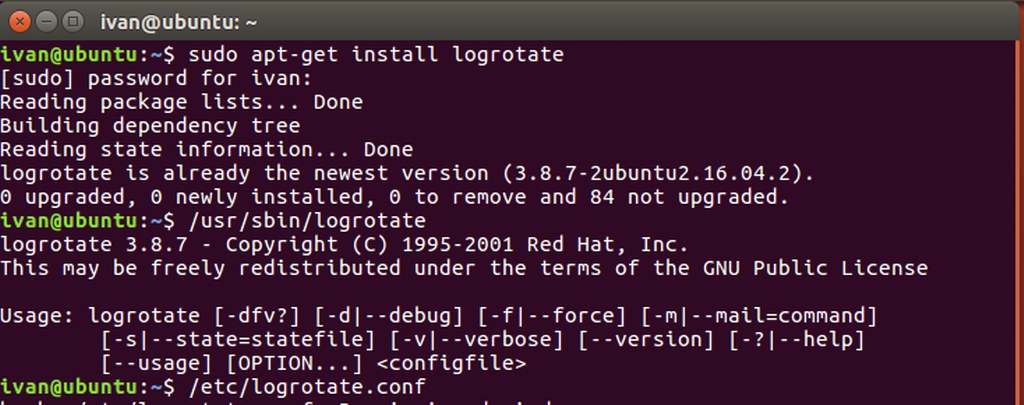
- Binary Location: The executable lives at /bin/logrotate. It manages system logs using your rules.
- Core Configuration: The main configuration file sits in /etc/, with modular configs in /etc/logrotate.d/. It allows both global settings and service-specific rules.

Installing logrotate is easy; you need to know the setup basics. The next sections explain the configuration file hierarchy in a clear, ordered manner.

Namecheap
Mastering the Main Configuration File
Learn how the configuration file controls log rotation.
Analyzing /etc/logrotate.conf
This configuration file sets defaults for setting up log rotation on Linux VPS hosting. It acts as a master template for logrotate behavior. Edit as root user using nano /etc/logrotate.conf or vim /etc/logrotate.conf.

Key Directives:
- weekly: Rotates logs once a week rather than daily.
- rotate 4: Keeps only the 4 oldest log files and deletes the 5th newest.
- create: Makes new empty log files after rotation.
- dateext: Adds rotation date to the rotated file’s name.
Compression: The compress directive uses gzip to save disk space. Compressed rotated logs take less disk space. The etc logrotate.conf sets defaults. Services override default settings using separate configuration files.
Modular Configs in /etc/logrotate.d
The include directive (include /etc/logrotate.d) allows modular logrotate configuration files. It makes managing system logs simple and avoids conflicts.
The main configuration file stays clean and easy to read. When you install Apache or MariaDB, their packages automatically add rotation rules.
System administrators can safely manage extra log files. They add custom rules to the etc/logrotate.d file when needed.
Each file follows the same simple format as the main conf file. The logrotate command reads them every rotation cycle.
Creating Service-Specific Configurations
Learn to easily create custom rules for each service.
Example: Configuring Samba Logs
Let’s see a simple example of managing Samba server logs. It shows how to manage log files for services that generate multiple files.

- File Path: /etc/logrotate.d/samba
- Target: /var/log/samba/* (Targets all Samba logs in that directory)
Critical Settings:
- notifempty: Skip log rotation for empty log files.
- olddir /var/log/samba/old: Store old logs outside var log.
- copytruncate: Copy then truncate operation on the original file.
- sharedscripts: Run post-rotate scripts once per log group.
This setup keeps the Samba server logs writing smoothly. The copytruncate operation helps services avoid log reopen issues.
Example: Configuring MariaDB Log Rotation
Database log files need special care due to their size and importance. Here’s how to configure logrotate for MariaDB logs.
Target: /var/log/mysql/*
Permissions: su mysql mysql and create 660 mysql mysql ensure proper ownership. File permissions must match the database user to prevent write errors.

Size Triggers:
- minsize 1M: Skip log rotation below the specified size (requires logrotate >=3.7.4).
- maxsize 100M: Force log rotate when size exceeded (requires >=3.8.1).
Retention: rotate 30 (Keeps 30 copies/days of logs for audit purposes)
Compression: Use the compress directive with the delaycompress option. It waits until the next rotation cycle.
Post-Rotate Script: Runs mysqladmin ping and mysqladmin flush-error-logs. It opens a new file for application logs.
Resource: Check MariaDB Documentation for help. They explain logrotate configuration files clearly.
Size-based rotation stops logs from crashing databases. The combination of minsize and maxsize controls the rotation process.
Comparison of Logrotate Directives
Let’s delve into how logrotate directives differ by use.
Directive Functionality Table
The table below compares key directives for common cases.
| Directive | Function | Typical Use Case |
| daily / weekly | Sets rotation frequency. | Busy servers (daily) vs Standard (weekly). |
| rotate [number] | Defines how many old logs to keep. | rotate 4 (General), rotate 30 (Database). |
| compress | Gzips rotated files. | Saving disk space on VPS. |
| copytruncate | Copies and empties the file. | Services that cannot close/reopen log handles. |
| dateext | Adds date to filename. | Easier human readability. |
| minsize / maxsize | Rotates based on file size. | Preventing partition overflow. |
| olddir | Moves logs to the archive folder. | Keeping /var/log/ tidy. |
Understanding these directives helps you configure logrotate for your logging needs. Different application logs need different rotation cycle strategies.
The compress directive reduces disk space for old logs. With retention rules, keep audit trails without storage strain.

Automating Log Rotation with Cron
Learn how to automate log rotation using a daily cron job.
The Cron Job Mechanism

The logrotate utility is not a daemon running continuously in the background. It runs using a cron job.
- Standard Setup: A script lives in /etc/cron.daily/logrotate. This location tells the system to run it once per day.
- Execution: The Bash script will run logrotate daily via /bin/logrotate. The script includes error handling and status reporting.
- Automation: Ensure that size checks and the rotation process run automatically. Daily cron job processes configuration files in sequence.
Check cron job using ls -la /etc/cron.daily/logrotate now. The file should be executable and securely owned by the root user.
This setup ensures logrotate runs via a daily cron job. Rotation date updates automatically based on specified frequency settings.
Handling Log Data and Naming Conventions
Learn how to control log data with clear naming rules.
Naming Strategies for Rotated Logs

Clear names help find log files during key events troubleshooting. Good naming improves log rotation information and review.
- Date Extensions: Using dateext and use date sorts, rotated logs easily. It results in files like mylogs_20230220.log. It helps track each rotation process clearly.
- Timestamps: Advanced configs use date format (e.g., .%Y-%m-%d-%H-%M-%S) for precise tracking. It is useful when events span Apache logs and services.
- Sequence: Numbered files show old log file order (e.g., mylogs.log.1). The original log file keeps no extension by default.
The recently rotated log file contains the most recent activity. It archives older rotated logs per rotation cycle.
Managing Old Logs and Archives
Rotation saves disk space, but rotated logs need planning. Good rules manage the storage of old log files over time.
Compression: The compress directive converts rotated logs to .gz files. It saves disk space, often ninety percent or more.
Centralization: Periodically move log files to a centralized server or cloud storage. This approach offers multiple benefits:
- Prevents tampering with log files for security.
- Enables long-term log data analysis across servers.
- Frees local disk space for active operations.
Retention Policy: Keep log files for one week to one year. Do not keep log files on active servers forever. Compliance rules often set minimum retention periods.
The old log file gets deleted or moved by the rotation count. Plan retention to balance audit needs with available disk space.
Testing and Troubleshooting Logrotate
Test logrotate to find error messages early.
How to Test Your Configuration

Never deploy logrotate’s configuration without testing first. Bad rules can corrupt log files or cause you to lose log data.
- Dry Run: Use debug mode (usually -d) to preview the rotation process. It shows changes without modifying log files.
- Force Rotation: Use the force command to test even if it doesn’t meet rotation conditions. It ignores normal rotation process rules.
- Command: logrotate –force /etc/logrotate.d/mariadb
- Use Case: Checks permissions and scripts before automatic runs. It also confirms that configure logrotate settings work safely now.
Check the logrotate status file at /var/lib/logrotate/logrotate.status. It tracks when each log was rotated safely. Use the man page with the following command. Run man logrotate for help when needed.
Always run logrotate manually to test setups. Watch error messages for permission or syntax issues.
Best Practices for Log Rotation Strategy
Explore best practices for setting up log rotation Linux VPS.
Security and Performance Tips

Follow established best practices for good log rotation to avoid common errors.
- Don’t Disable It: Never disable log rotation on production servers. Log files support security audits and investigations.
- Use delaycompress: Compression helps prevent data loss when apps write to old log files. The truncate operation happens before compression in the next rotation cycle.
- Readable Names: Always use dateext for easier debugging later. Timestamps show which logs correspond to which time periods.
- Monitor Disk Usage: Match logrotate’s configuration retention (rotate N) with disk space. Check total log generation before storage fills.
Learn how to choose a VPS provider with enough disk space. Low storage breaks log rotation setups.
Additional considerations:
- Avoid world-writable log files for security.
- Use the create directive to set file permissions.
- Review application logs to confirm log rotation.
- Test backups and restore procedures for archived logs.
Previous example configurations show production-ready setups for real servers. Adapt them to your environment and monitoring needs.

Apache logs benefit from daily rotation on busy sites. Check log sizes using the du -sh /var/log/httpd/* command now.
It keeps server logs manageable while saving key events. The rotation cycle repeats automatically for steady log management.
Different services often need different log rotation strategies. Database logs usually need longer retention than web access logs.
Managing system logs means knowing application logging patterns. Monitor log generation rates to tune rotation parameters properly.
The Linux utility handles rotation well once configured properly. It decouples log generation from storage for continuous writing.
Global settings in the main configuration file set defaults. Service files override these defaults for special needs cases.
Specified size triggers stop single logs from consuming disk space. Time-based rotation adds more protection for Linux systems.
Log rotation information appears in the logrotate status file. New log files start empty as the original log file rotates.

Conclusion
Setting up log rotation on Linux VPS keeps servers healthy. The logrotate utility manages logs and prevents storage failures. Simple configuration files make log control easy and reliable.
Ready to master best practices today? Start by learning how to check server logs for security.
Next Steps: What Now?
Here’s what to do next to improve your Linux VPS log rotation setup.
- Learn how to connect to your VPS via SSH.
- Learn about VPS security to protect VPS and log integrity.
- Explore cron jobs hosting services.
- Understand what a Linux VPS is.
- Learn about cloud server security practices to safeguard logged data.


