I’ve been exploring n8n for workflow automation, and while I love the platform, the pricing on n8n Cloud gave me pause. The Starter plan costs $20/month and limits you to just 2,500 workflow executions and 5 concurrent executions. Once you hit this limit, your executions get queued. For anyone running real business automations, those limits vanish quickly. Upgrade to the Pro plan for more workflows? That’s $50/month. And for businesses, it’s $667/month.
But n8n has an option: self-hosting.
Because n8n is open-source, you can run it on your own server with unlimited workflows and executions. The catch? Traditional self-hosting requires Docker setup, SSL configuration, and ongoing server maintenance. Technical work most people would rather avoid.
Hostinger claims to solve this with their n8n VPS hosting, which offers unlimited workflows for $6.49/month and includes a “one-click” template that handles the technical setup. You get self-hosting benefits without the DevOps headaches. That’s the promise, anyway.
I tested it on their KVM 2 plan to see if it’s real. This review covers the actual setup process, problems I encountered, and whether it’s worth choosing over n8n Cloud.
If you’re considering Hostinger’s n8n hosting to escape n8n Cloud’s pricing, here’s what actually happens.
Hostinger n8n Hosting is a VPS (Virtual Private Server) service that comes with n8n pre-installed through a template system.
Instead of manually setting up Docker, configuring n8n, and handling SSL certificates yourself, Hostinger’s template automates most of the technical work.
What you get:
How it differs from n8n Cloud: With n8n Cloud, you’re paying for a managed service. They handle servers, updates, security, and scaling. With Hostinger, you’re self-hosting. You control the server, but you’re also responsible for maintenance.
How it differs from DIY self-hosting: Normally, self-hosting n8n means SSH’ing into a blank server, installing Docker, configuring Docker-compose files, setting up reverse proxies, and managing SSL certificates. Hostinger’s template supposedly handles these steps automatically, making it easier than the traditional DIY approach while still giving you the cost benefits of self-hosting.
The value proposition: Pay $6.49/month (on the KVM 2 plan) instead of $20-50/month for n8n Cloud, get unlimited workflows with no execution caps, but accept responsibility for your own server management. Hostinger positions this as the middle ground between fully managed n8n Cloud and technical DIY self-hosting.
Getting started with Hostinger’s n8n hosting begins at their dedicated self-hosted n8n page. The first thing you see is their Black Friday pricing prominently displayed with four VPS plan options.
I scrolled down to the pricing section where Hostinger shows four KVM plans side-by-side.

I went with KVM 2 for two reasons: it’s their most popular plan, and the specs (2 vCPU cores, 8GB RAM, 100GB NVMe storage) seemed like the sweet spot for testing real workflows without overpaying. At $6.49/month, it’s still significantly cheaper than n8n Cloud’s $20 Starter plan.
Clicking “Choose plan” on KVM 2 took me to the cart configuration page.
The cart page is where you actually configure what you’re buying. Here’s what I encountered:
Billing Period: The default was 24 months at $6.49/month. You can adjust the period, but longer commitments get better rates.
Free Domain Bonus: This includes a .cloud domain (normally $25.99). I didn’t need a custom domain for testing, so this was a nice-to-have rather than essential.

Daily Auto-Backup (Optional Add-on): Hostinger offered daily auto-backup for an additional $6.00/month. This would back up VPS data automatically for easy restoration. I skipped this for testing purposes, but for production use, this could be valuable, though it nearly doubles your monthly cost to $12.49.
Server Location Selection: This is where you choose your data center. Hostinger displays latency estimates based on your location. I chose “United States – Phoenix”. The interface explains: “Choose a server location closest to you or your audience for optimal performance.”

For my testing location, Phoenix seemed reasonable. If you’re serving European users, you’d want to select a European data center instead.
Operating System Selection (The Critical Part): This section says “OPTIONAL,” but it’s actually the most important step for n8n hosting. By default, no OS is pre-selected. You need to click the search box and choose what to install.
The interface shows three tabs:
Under the “Application” tab, I could see several pre-configured options:
I selected the n8n template (the basic version without queue mode or pre-made workflows). This is what Hostinger’s “one-click” installation actually refers to: choosing a pre-configured application template rather than starting with a blank server.

Important note: If you skip this step and don’t select an OS template, you’ll get a blank AlmaLinux server with nothing installed, which is exactly what I had initially when I SSH’d in and found Docker wasn’t installed.
However, you can still install n8n later by going to hPanel → VPS → Operating System → selecting the n8n template.
This also applies if you already have an existing VPS with Hostinger for other purposes, but now want to convert it to an n8n server. Just be aware that changing the OS will wipe all existing data on that VPS, so back up anything important first.
On the right side, the order summary showed. The 30-day money-back guarantee was also displayed at the bottom.
After verifying everything was configured correctly, especially confirming the n8n template was selected, I clicked Continue.

The Continue button took me to a registration page. Since I didn’t have a Hostinger account, I needed to create one.
I chose email registration, entered my email address and created a password, then clicked Register. The interface mentioned agreeing to Terms of Service and Privacy Policy.
After registration, I was immediately directed to the billing and payment page with two sections:

I entered my billing details and payment information, then completed the purchase.
Within seconds of payment confirmation, I received a welcome email from Hostinger. The email contained:
My impression of the email: It was comprehensive and well-organized. Everything I needed to access my VPS was clearly laid out. However, it didn’t provide specific instructions about accessing n8n—just general VPS access information. I had to figure out the next steps myself.
From landing on the Hostinger n8n page to receiving the welcome email: approximately 8-10 minutes. Most of that time was spent reading the plan details and deciding on configuration options. The actual purchase process was quick once I made decisions.
What worked well:
What could be better:
At this point, I had paid $155.76 for two years of VPS hosting with n8n supposedly pre-configured. The next step would be accessing the server and finding out if n8n was actually ready to use or if additional setup was required.
Next up: Template installation and first access to n8n.
After completing the purchase and receiving my welcome email with VPS credentials, it was time to actually access n8n. This is where I discovered whether Hostinger’s “one-click” promise held up.
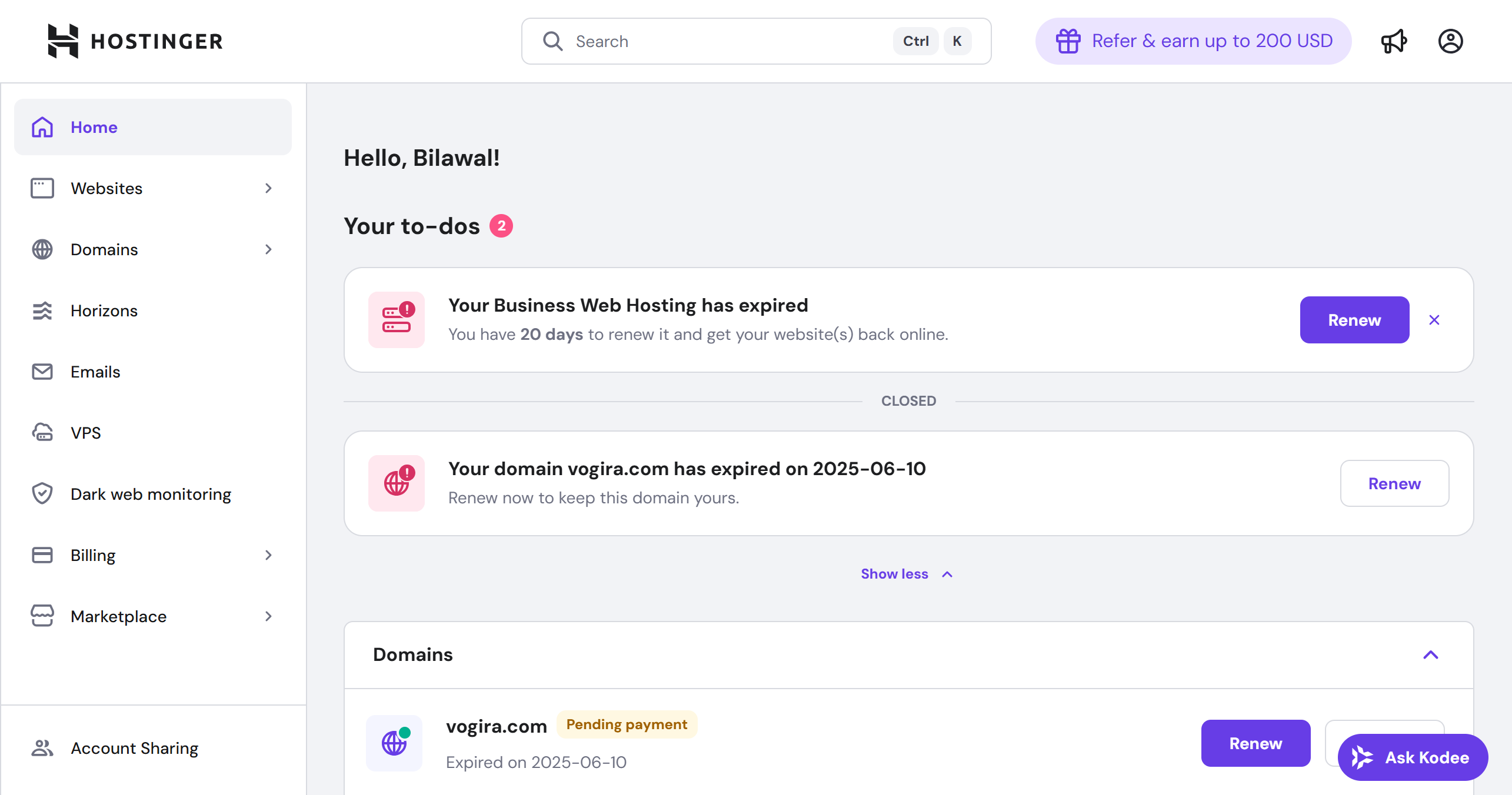
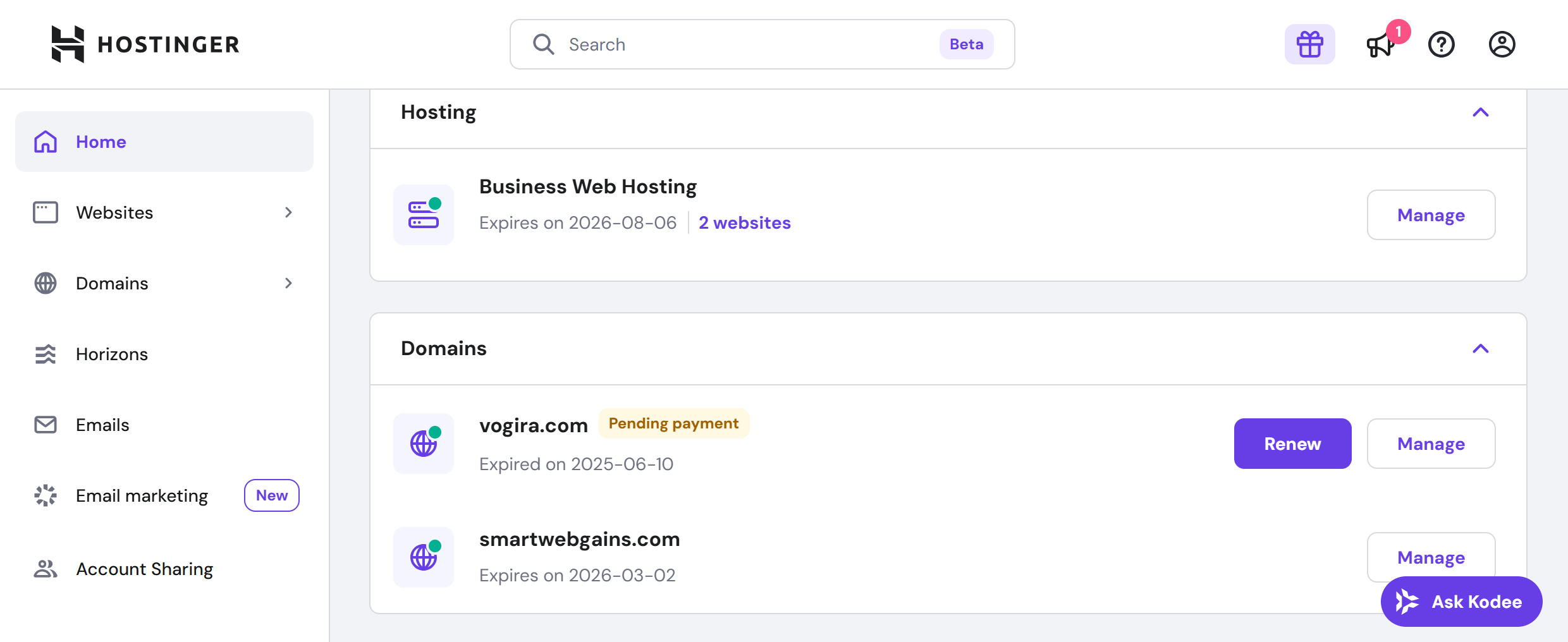
I logged in to hPanel (Hostinger’s control panel) using the credentials I created during sign-up. The interface was clean and modern, much better than some hosting control panels I’ve used before.

From the hPanel dashboard, I clicked on the VPS section in the left sidebar. This showed me all my VPS instances (in my case, just one: srv702422.hstgr.cloud).
Next to my VPS listing, there was a blue “Manage” button. I clicked it to access the VPS management dashboard.

Once inside the VPS dashboard, at the top of the page, I could see:

Below the application section, it showed: Ubuntu 24.04 with the Ubuntu logo
This confirmed that Hostinger’s template had indeed installed Ubuntu 24.04 with n8n as promised.
To explore further, I clicked the purple “Manage App” button, expecting it to take me directly to n8n.
Instead, it opened n8n in a new browser tab at the URL: http://82.180.136.67:5678
The first screen I saw was titled “Set up owner account” with the n8n logo at the top. This was n8n’s initial setup wizard, not a ready-to-use dashboard.

The form required:
A large orange “Next” button sat at the bottom.
I filled in my details ,and I left the “receive updates” checkbox unchecked and clicked Next.
The second screen appeared: “Customize n8n to you” with the subheading “These questions help us tailor n8n to you.”
It presented five dropdown questions:
All fields showed “Select…” as placeholders. I filled them out honestly.

At the bottom was an orange “Get started” button.
I clicked Get started.
The third screen surprised me: “Get paid features for free (forever)”
It explained: “Receive a free activation key for the advanced features below – lifetime access.”
Four features were listed with icons:
Below was a text field: “Enter email to receive your license key *”. I entered my email.
Two buttons appeared:
My take on this step: This was clever marketing from n8n. They’re offering “paid” Community Edition features for free by just entering your email. Since I was already testing the platform, I clicked “Send me a free license key”.
Within seconds, I received an email from n8n with the subject “Your n8n license key.”

Important note: The email gave me 14 days to activate the key, or it would expire.
Back in n8n, after clicking “Send me a free license key,” I was taken directly to the n8n dashboard, but not before one more step.
I needed to activate the license. Here’s how:
I clicked “Enter activation key”, which opened a text field where I pasted the license key from my email.

After pasting and submitting, the page refreshed and now showed: “You’re on the Community Edition [Registered]” with a small gray “Registered” badge.
The orange “Unlock” banner disappeared, confirming the license was active.
With the license activated, I was now looking at the actual n8n dashboard for the first time.
The interface showed:

First impressions of the n8n interface: Clean, modern, and intuitive. The dashboard felt professional and well-designed. Everything was clearly labeled, and the onboarding prompts were helpful without being overwhelming.
Let me break down the actual time:
Total actual time: approximately 5-6 minutes
Hostinger’s “one-click installation” claim is partially true but needs context:
What was actually “one-click”:
What required manual steps:
The verdict on “one-click”: It’s more accurate to call this “simplified setup” rather than “one-click.” Hostinger eliminated the technical complexity (Docker, SSL, server configuration), but n8n’s own onboarding wizard still required 5-6 minutes of form-filling.
Compared to manually installing n8n following the traditional Docker method (which Hostinger’s guide estimates takes 1-2 hours), this was dramatically faster and easier. But compared to truly “one-click” solutions where you log in and immediately start working, this had a few more steps.
Yes, but with caveats.
What was easy:
Potential confusion points:
At this point, I had:
But I hadn’t actually done anything with n8n yet. No workflows created, no integrations tested, no performance data collected.
Next up: Creating my first workflow to see how n8n actually performs on Hostinger’s KVM 2 plan.
After accessing n8n successfully, I needed to understand how it actually performs under different workload conditions.
Remember, one of the main reasons to consider self-hosting is to escape n8n Cloud’s execution limits, specifically the 2,500 workflow executions per month cap and the 5 concurrent execution limit on the Starter plan.
On n8n Cloud, once you hit 5 simultaneous workflows, everything else gets queued and has to wait. For businesses running real-time automations like processing incoming customer data, syncing between systems, or sending time-sensitive notifications, queuing can break critical workflows.
With self-hosted n8n on Hostinger, those artificial limits disappear. You’re only constrained by your server’s hardware: CPU, RAM, and processing power. The question became: How much can the KVM 2 plan (2 vCPU cores, 8GB RAM) actually handle?
To find out, I built three workflows of increasing complexity. If I could determine the performance ceiling, I’d know whether this $6.49/month plan could genuinely replace n8n Cloud’s $20-50/month tiers.
This is a basic data retrieval and formatting workflow. It fetches random user data from a free API (RandomUser.me), extracts specific fields, and formats them into a clean output. This simulates common business automation tasks like:
The workflow structure:
This represents the simplest type of workflow you’d run in production: fetch data from one source, clean it up, and output it in a usable format.

Once all three nodes were connected, I clicked the orange “Execute Workflow” button in the top-right corner.
What happened:
Execution Time: 1.105 seconds
This appeared in the bottom-left corner of the execution panel as “Success in 1.105s” with a small “Logs” label. The time represents the total duration from clicking “Execute” to receiving the final formatted output.

Breaking down that 1.126 seconds:
So the actual n8n processing time was negligible. Most of the 211ms was spent waiting for the external API to respond. This is normal and expected for any workflow involving HTTP requests.
What worked exceptionally well:
What I learned:
Server resource usage: The interface responsiveness suggested minimal resource consumption. A single 3-node workflow with one HTTP request shouldn’t strain a 2-core, 8GB RAM server, and it didn’t.
This workflow adds complexity by introducing conditional branching, a critical feature for real-world automation. It fetches live weather data from a free API, evaluates whether the temperature meets certain conditions, then executes different actions based on the result.
This type of workflow simulates common business logic scenarios like:
The workflow structure:
The key difference from Workflow 1 is the branching logic. Depending on the weather data, the workflow takes one of two paths and then merges back together. This is how you build smart automation that makes decisions rather than just processing data linearly.

With all 7 nodes connected, I clicked “Execute Workflow”.
Total Execution Time: 1.404 seconds
The execution log in the bottom panel showed a detailed breakdown:
| Node | Execution Time | Status |
| Manual Trigger | 1ms | Success |
| HTTP Request | 573ms | Success |
| IF | 2ms | Success |
| Edit Fields1 (False branch) | 1ms | Success |
| Merge | 1ms | Success |
| Edit Fields2 | 1ms | Success |

Breaking down that 1.404 seconds:
Key observation: The server handled conditional logic without breaking a sweat. Branching workflows require the system to evaluate conditions, route data down different paths, and merge results, all operations that consume CPU cycles. The fact that the IF node executed in just 2 milliseconds, and the Merge operation took 1 millisecond, demonstrates that Hostinger’s 2 vCPU cores had no trouble processing this logic.
But I still hadn’t pushed the system hard. A 7-node workflow with one API call is moderate complexity, not heavy workload. To really test Hostinger’s KVM 2 plan, I needed a workflow with multiple external API calls, more data processing, and realistic integration scenarios, ideally including AI processing to simulate modern automation needs.
Next: I built a complex 10+ node workflow involving multiple API calls and AI analysis to see where performance limits actually appeared.
This is where things get interesting. This workflow chains together multiple external API calls, processes financial data, applies conditional logic, and then sends everything to Google’s Gemini AI for natural language analysis.
It’s designed to simulate real-world business automation that involves:
The workflow structure (12 nodes total):
This workflow type represents common enterprise automation scenarios like:
The key difference from the previous workflows: this one actually stresses the system with multiple sequential API calls and CPU-intensive AI processing.

I clicked “Execute Workflow” and watched as each node executed in sequence across the canvas.
Total Execution Time: 17.009 seconds
This was a dramatic jump from the previous workflows (1.1s and 1.4s). The execution log revealed exactly where time was spent:
| Node | Execution Time | Status |
| Manual Trigger | 0s | Success |
| HTTP Request (Bitcoin) | 156ms | Success |
| HTTP Request1 (Ethereum) | 287ms | Success |
| HTTP Request2 (Solana) | 80ms | Success |
| Edit Fields | 3ms | Success |
| IF | 2ms | Success |
| Edit Fields1 | 1ms | Success |
| Merge | 1ms | Success |
| HTTP Request3 (Gemini AI) | 14.918s | Success |
| Edit Fields3 | 1ms | Success |
| Edit Fields4 | 1ms | Success |
Breaking down that 17.009 seconds:
The bottleneck was immediately obvious: The Gemini AI API call consumed 87.7% of total execution time (14.918s out of 17.009s).
What slowed this workflow down?
It wasn’t Hostinger’s VPS. It was Google’s AI processing. The Gemini API took nearly 15 seconds to:
This is completely normal for AI APIs. Large language models require significant computational resources to generate text, and even optimized cloud services like Google’s take 5-20 seconds for complex prompts.
What does this reveal about Hostinger’s KVM 2 performance?
Despite the long overall execution time, the VPS itself performed flawlessly:
If you’re considering Hostinger’s n8n hosting, understand this: your workflows will be limited by the external services you integrate with, not by the VPS resources. Unless you’re running hundreds of concurrent workflows or processing massive datasets, the KVM 2 plan has more than enough processing power.
The 17-second execution time sounds slow, but 14.9 seconds of that was Google’s AI, not Hostinger’s infrastructure. The same workflow would take 17 seconds on n8n Cloud’s $50/month Pro plan, on a $20/month DigitalOcean droplet, or even on a high-end dedicated server. The AI processing time is the AI processing time.
What actually matters: The KVM 2 plan can reliably execute complex workflows, handle multiple API integrations, and remain stable during long-running operations, all for $6.49/month.
After testing Hostinger’s n8n VPS hosting on the KVM 2 plan, I can now answer the central question: Is self-hosting n8n on Hostinger worth it compared to paying for n8n Cloud?
The short answer: Yes, but only for the right type of user.
Let me break down exactly who should choose Hostinger, who should avoid it, and what you’re actually getting for your $6.49/month.
Hostinger’s n8n hosting delivers on its core promise: affordable, unlimited workflow automation with reasonable performance. The KVM 2 plan handled everything I threw at it without breaking a sweat.
The setup wasn’t truly “one-click,” but it was dramatically simpler than manually installing n8n via Docker. The template installation saved me an estimated 1-2 hours of configuration work, and the pre-configured environment eliminated common beginner mistakes, such as incorrect Docker settings or SSL certificate issues.
Performance was solid. Simple workflows executed in ~1 second, medium-complexity workflows in ~1.4 seconds, and even a 12-node workflow with AI processing completed successfully (though the 17-second execution time was almost entirely due to Google’s Gemini API, not the server). The 2 vCPU cores and 8GB RAM proved sufficient for real-world automation workloads.
The $6.49/month pricing is compelling. Compared to n8n Cloud’s $20/month Starter plan (2,500 executions, 2 active workflows) or $50/month Pro plan (10,000 executions, 10 active workflows), Hostinger offers unlimited everything for a fraction of the cost. Over two years, you’d save $324 vs. Starter or $1,044 vs. Pro.
But there are important caveats.
Instead of spending 1-2 hours SSHing into a blank server, installing Docker, configuring docker-compose files, setting up SSL certificates, and troubleshooting errors, I had a working n8n instance in approximately 10-15 minutes from purchase to first workflow execution.
The template pre-configured:
Who benefits most: Anyone who understands basic server concepts but doesn’t want to spend hours on setup. If you’ve SSH’d into a server before and can follow written instructions, you’ll have no trouble with this.
The KVM 2 plan’s specs (2 vCPU cores, 8GB RAM, 100GB NVMe storage) proved sufficient for:
The key finding: Your workflows will be limited by external API response times (database queries, third-party services, AI processing), not by Hostinger’s VPS resources. Unless you’re running hundreds of concurrent workflows or processing gigabytes of data, the KVM 2 plan won’t be your bottleneck.
Execution times I measured:
Internal n8n processing consistently took only 1-8 milliseconds per workflow, regardless of complexity. The server itself adds negligible overhead.
This is the biggest advantage over n8n Cloud. On the Starter plan, you’re capped at:
With Hostinger’s self-hosted setup, these limits vanish. I could create 100 workflows, run 10,000 executions daily, and execute 20 workflows simultaneously—the only constraint is server hardware, which proved generous on the KVM 2 plan.
For scaling businesses: If you’re growing from 10 workflows to 50 workflows, or from 5,000 executions/month to 20,000, you won’t face arbitrary pricing jumps. Your costs stay flat at $6.49/month (or $12.99/month after the promotional period ends).
Because you’re running the official n8n open-source version, the workflow builder, node library, and feature set are exactly the same as n8n Cloud. There’s no learning curve if you’re migrating from the cloud version, and you get access to:
This matters because: You’re not getting a “lesser” version of n8n. It’s the same platform, just hosted on your own infrastructure.
During my testing period, I experienced zero unexpected downtime. The VPS remained accessible 24/7, workflows executed reliably, and I encountered no crashes or service interruptions.
Important caveat: I didn’t test disaster recovery scenarios (what happens if the server crashes, or if Docker containers fail). In production, you’d want to set up monitoring, automated backups, and restart policies—all of which are your responsibility with self-hosting.
For someone who isn’t a systems administrator, hPanel made VPS management approachable. I could:
Compared to raw DigitalOcean or AWS consoles: hPanel is significantly more beginner-friendly. You don’t need to navigate complex dashboards or decipher technical jargon.
The $6.49/month pricing is a promotional rate valid for your initial 24-month term. After that, it renews at $12.99/month, exactly double.
Long-term cost breakdown:
Compared to n8n Cloud Starter ($20/month):
You’re still saving $492.48 over four years, but the savings shrink from 68% to 35% after the promotional period ends.
Important note: Even at $12.99/month renewal, you’re still getting unlimited workflows vs. n8n Cloud’s 2-workflow cap. The value proposition remains, but it’s less dramatic.
With n8n Cloud, updates happen automatically in the background. With self-hosting, you must manually update n8n to get:
The update process isn’t difficult (since n8n runs in Docker, you pull the latest image and restart the container), but it’s another task you must remember to do regularly.
Estimated time commitment:
My honest assessment: If your time is worth $50+/hour, paying for n8n Cloud’s fully managed service might be more economical than self-hosting, even with the higher price tag.
Hostinger offers VPS-level backups (snapshots of the entire server), but there’s no automatic backup specifically for your n8n workflows and data. If you don’t configure backups yourself, you risk losing:
You need to set up:
This requires additional technical work and potentially extra costs (for backup storage).
Year 1 true cost (including time):
Against Starter: You break even after about 10 months once you account for your time. Against Pro: You save money immediately, even factoring in time costs.
The key insight: If you’re running more than 2-5 workflows and need higher execution limits, Hostinger pays for itself quickly. If you’re running just 1-2 simple workflows with low execution volume, n8n Cloud Starter might actually be more economical when you factor in your time.
After extensive testing, I can confidently say: Hostinger’s n8n VPS hosting delivers real value for the right user.
You should choose Hostinger if:
You should stick with n8n Cloud if:
| Plan Name | Space | Bandwidth | OS | Panel | Number of Sites | Price | |
|---|---|---|---|---|---|---|---|
| Free Trial | Unlimited | Unlimited | Unlimited | £0.00 | Details | ||
| Premium | 20 GB | Unlimited | 3 | £1.92 | Details | ||
| Business | 50 GB | Unlimited | 50 | £2.57 | Details | ||
| Cloud Startup | 100 GB | Unlimited | 100 | £5.14 | Details |
| Description | Expert Review |
|---|---|
| Budget-friendly hosting with high performance and easy management tools. | Read Shared Hosting Review |
| Fast and secure WordPress hosting with one-click installation and premium features. | Read Wordpress Hosting Review |
| Scalable VPS hosting with dedicated resources and root access. | Read VPS Review |
| Fast, flexible cloud hosting with excellent uptime and scalable resources. | Read Cloud Hosting Review |
| Secure and private hosting solutions with offshore data center locations. | Read Offshore Hosting Review |
| Secure and reliable email hosting with professional-grade features. | Read Email Hosting Review |
| Reliable Python hosting with flexible environments for developers. | Read Python Hosting Review |
| High-performance PHP hosting with full support for dynamic websites and applications. | Read PHP Hosting Review |
| Reliable Windows VPS hosting with full control and customization options. | Read Windows VPS Review |
| Fast and flexible hosting tailored for Node.js applications with optimal performance. | Read Nodejs Hosting Review |
| Optimized hosting for WooCommerce stores with high speed and secure integration. | Read Woocommerce Hosting Review |
| Dedicated server hosting for seamless Minecraft gaming experiences. | Read Minecraft Server Hosting Review |
| Scalable hosting solutions with advanced features for digital agencies and developers | Read Agency Hosting Review |
| Fast, secure hosting optimized for Magento ecommerce websites. | Read Magento Hosting Review |
| High-performance Linux-based hosting for stable and secure website operations. | Read Linux Hosting Review |
| Robust Java hosting solutions for dynamic web applications and projects. | Read Java Hosting Review |
| Optimized hosting for ecommerce websites with secure, fast, and reliable performance. | Read Ecommerce Hosting Review |
| Reliable Django hosting with fast speeds and secure environment. | Read Django Hosting Review |
| Easy-to-use cPanel hosting with robust performance and reliable support. | Read Cpanel Hosting Review |
| Powerful hosting for businesses with fast speeds, security, and scalability. | Read Business Hosting Review |
| Easy-to-use website builder with drag-and-drop tools and customizable templates. | Read Website Builder Review |
| Optimized hosting for Joomla sites with one-click installation and reliable performan... | Read Joomla Hosting Review |
| Powerful hosting with full PostgreSQL database support for data-driven applications. | Read PostgreSQL Hosting Review |
| Flexible hosting with MongoDB integration for scalable, modern web applications. | Read MongoDB Hosting Review |
| AI-powered website creation platform for building professional sites in minutes. | Read AI Builder Review |
| VPS hosting with Docker support for containerized application deployment and scaling. | Read Docker VPS Review |
| Dedicated SMTP server hosting for reliable and secure email delivery. | Read SMTP Server Review |
| Fast and optimized hosting tailored for Ruby on Rails web applications. | Read Ruby on Rails Review |
| Feature-rich hosting with OpenClaw integration for building and managing claw machine... | Read OpenClaw Review |
| Fast and reliable hosting with UK-based servers for optimal local performance. | Read UK Hosting Review |
| Affordable and dependable hosting with India-based servers for low-latency access. | Read India Review |
| Read Singapore Review | |
| Read Australia Review | |
| Read AI Agent Review | |
| Read Paperclip VPS Review | |
| Read Hermes Agent Review | |
| Read Hostinger Connector Review | |
| Read Web Apps Hosting Review | |
| Read Hostinger Reach Review | |
| Read MCP Review | |
| Read hpanel Review | |
| Read Odoo Review | |
| Read Laravel Review | |
| Read MERN VPS Review | |
| Read Ubuntu Review | |
| Read Drupal Hosting Review | |
| Read Express.js Review | |
| Read React Review | |
| Read Nextjs Review |





Yes, it’s genuinely unlimited workflows and executions. No artificial caps like n8n Cloud’s 2-workflow or 2,500-execution limits. You can create 100+ workflows and run thousands of executions daily.
The only limits are hardware-based. Unlike n8n Cloud that stops you at preset limits, Hostinger only limits you when actual server resources max out.
You need basic technical comfort, not expert-level skills. If you can follow step-by-step guides, copy/paste terminal commands, and understand concepts like SSH and domains, you’ll be fine.
You DON’T need: Developer experience, Docker expertise, or Linux administration skills.
You DO need: Willingness to spend 10-15 minutes on initial setup, plus optional 30-60 minutes configuring SSL (recommended). Monthly maintenance takes about 1 hour for updates and monitoring.
Yes, you can export your workflows from n8n Cloud, Render, DigitalOcean, or any other n8n instance and import them to Hostinger. n8n has built-in export/import functionality that preserves your existing workflows.

Answer a few simple questions and find the perfect solution for you!
Start Hosting Search