


Want to boost your online sales? Learn how to sell on Google Shopping so you can display your products directly in search results and reach millions of potential customers.
This comprehensive guide will teach you how to set up your Google Merchant Center account, create an optimized product feed, and launch effective ad campaigns to boost your visibility and drive conversions.
Selling on Google Shopping works best when your website is well-organized, fast, and easy for Google to understand. The right website builder helps you manage product pages, optimize feeds, and improve visibility across Google surfaces. Check out our recommended website builders to launch a store that’s ready to succeed on Google Shopping.
Build a Google-Ready Storefront with These Top Website Builders
| Provider | User Rating | Recommended For | |
|---|---|---|---|
 | 4.6 | Beginners | Visit Hostinger |
 | 4.4 | Pricing | Visit IONOS |
 | 4.2 | Design | Visit Squarespace |
Understanding Google Shopping and Its Benefits
Google Shopping is a Google service where people can search, compare, and purchase products from many retailers in one place.

It’s built around product visuals, pricing, and availability so that shoppers can act fast. On Google Shopping, your items appear with images, prices, ratings, and store names.
Here’s how it works. Your products appear in two ways: free listings shown on Google surfaces and paid ads called Shopping Ads.
Free placements help you generate traffic without a budget. Paid placements scale your reach when you want more control. To manage both, you’ll use the same product feed and the same Merchant Center.
Where do your products show up?

Products can appear across Google, including the main Google search results, the Google Shopping tab, Google Images, and even YouTube.
Your products appearing across search results means wide discovery and strong buyer intent. You’re meeting shoppers where they’re already searching.
Why does this matter?
The volume and intent are hard to beat. Google processes billions of daily searches, and many are product-related. Shopping results appear at the top with images and prices, pulling more attention and clicks.
Sellers often see higher conversion rates than text ads because of higher product details and visuals. If you want a refresher on how these ad formats work, see this quick explainer on Shopping Ads.
What about local sellers?
If you have a physical store, you can use local inventory to show what’s in stock near me, display your business address, and drive foot traffic from Google Maps.

Shoppers can even use Google Lens to find similar items from a photo and discover your offers directly from search.
Google Shopping is a beginner’s guide dream channel. It has high-intent reach, clear pricing, and a fast path from discovery to purchase.
Setting Up Your Google Merchant Center Account

The Google Merchant Center is your hub for product data. Google Merchant Center is a platform where you upload products, manage your settings, and control how your items appear.

The merchant center is step one before you can run shopping campaigns or appear in free placements. Ready to start? Go to the Google Merchant Center website. Use a business Gmail to sign up and follow the prompts for basic information.

You’ll add your store name, your website, and the countries where you sell. On the next screen, choose how people will check out. A lot of sellers send buyers to their own site.
Here’s the sequence most stores follow:
- Create your merchant center account with accurate business details.
- Add your website and begin account verification.
- Choose your checkout flow and shipping/tax preferences.
- Prepare your Google Shopping product feed and upload products.
- Connect to your Google Ads for paid ads later.
If you’re new to e-commerce, make sure your online store is set up first.
Verifying Your Website and Business Information

Account verification is the trust step. It proves you control the site linked in your Merchant Center and that your business is legitimate. If you skip the account verification step, you run the risk of disapproval or limited visibility.
Google checks your site for a few key items:
- Accurate contact details: an email, phone number, and physical address on a visible web page.
- Clear policies: refund policy and terms of service pages, easy to find.
- Secure checkout: SSL (https://) is required for payment pages and any page collecting personal data.
- Language and currency: make sure they match your target countries.
- Shipping and taxes: your website settings must match what you declare in the merchant center.

Want to speed it up? Keep your product pages consistent with the information in your feed. Shipping costs, return windows, and prices should align. Also, double-check that your business name on-site matches your merchant center account.
Website Verification Methods
There are several methods you can use to verify your site:
- HTML Tag: add a small meta tag snippet to your site’s header.
- HTML File Upload: drop a file on your server root and confirm it’s live.
- Google Tag Manager: verify through your GTM container—here’s a simple overview of Google Tag Manager.
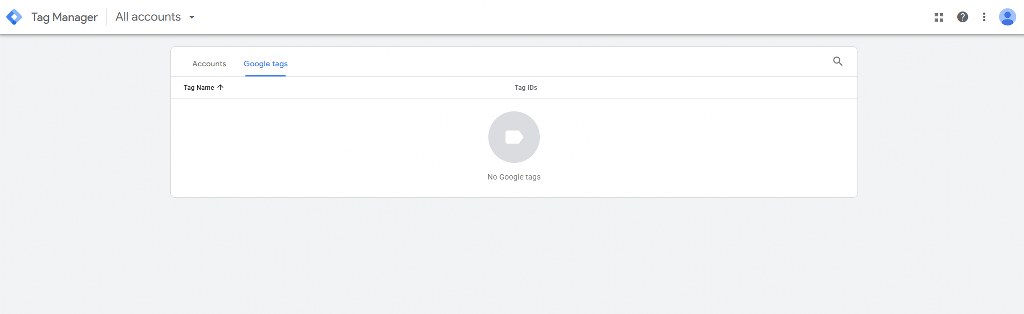
- Platform-specific steps: Many e-commerce platforms include easy installers.

Also, make sure that your shipping, tax, and returns are consistent everywhere. If you operate locally, add your store to maps and keep hours up-to-date. That way, your listings can support local pickup and nearby availability.
Finally, run a quick compliance pass: privacy policy, cookies, payment logos, and customer support info. These are small signals that help shoppers trust your brand.

Namecheap
Creating Your Product Feed
A product feed is a structured file that lists your items and all the product details you need for matching, ranking, and display. It’s the heart of your Google Shopping listings. Strong product data leads to relevant results, more impressions, and better click-throughs.
What file types can you use? Common options include TXT, CSV, TSV, and XML. The right choice depends on your platform and your team’s comfort. Many merchants export CSVs or use a plugin to keep the feed synced.

Google Maps searches for your products using your titles, categories, and attributes. If your feed is incomplete or inconsistent, your items won’t show for the right queries. You’ll lose impressions, spend, and sales.
What makes a robust Google Shopping product feed? Accuracy, completeness, and freshness. Keep your availability and pricing updated.
Include unique identifiers like GTINs or MPNs to help with matching. And include variants like size and color so shoppers find what they want.
Key Product Attributes to Include

Google supports dozens of attributes, but certain fields are essential:
- id
- title
- description
- link (product URL)
- image_link
- availability
- price and sale_price (if needed)
- googleproductcategory
- brand
- condition
- gtin or mpn
- shipping and tax (via settings or feed)
- additionalimagelink (for more product images)
- itemgroupid for variants like size and color
Your titles and descriptions should be descriptive, but clear. Use brand, model, size, color, material, and intended audience when relevant.
More context helps customers find the right item and helps the algorithm produce relevant results in search.
How to Create the Product Feed
You can create a feed manually with a spreadsheet. It’s okay to create the feed manually for small catalogs. But you can make errors and struggle to scale. One missing field can stall a listing.

Most stores use a feed management tool or plugin to automate updates and prevent formatting issues. If you’re on Woocommerce, a plugin like CTX Feed can handle a compliant shopping feed and keep it in sync with your inventory. This reduces mistakes and saves time.

Whether you build or buy, validate your feed in Merchant Center’s diagnostics. Fix warnings and disapprovals immediately. Clean data brings more customers and improves performance.
Uploading Your Product Feed to Google Merchant Center
Once your feed is ready, add it to your GMC account. You’ll choose how Google should fetch your data and how often it should refresh. Scheduled fetches keep your catalog current.

Follow these steps:
- Log in to Merchant Center and go to Products.
- Click to add products and select “from a file.”
- Choose your target country and language from the list.
- Pick Scheduled Fetch and enter the feed file URL.
- Set a fetch time and frequency to match your inventory changes.
- Save, then view processing results and fix any issues.
If you prefer, you can upload a file manually or use a Content API connection. Scheduled fetch is easy and reliable. If your catalog changes daily, increase the frequency to keep prices and stock accurate.
After processing, browse your product listings in the Diagnostics tab. Look for disapprovals, limited performance flags, or warnings. Tackle these quickly to prevent lost impressions and sales.
Optimizing Your Product Listings for Success
After you set up, you have to optimize. Tune titles, images, categories, and promotions to lift click-through rates and conversion rates. Small changes can become complicated.
1. Optimize Your Product Titles

Titles drive relevance. Put the most important details first so they don’t get cut off. Include brand, product type, key attributes, and differentiators.
Try this structure:
- Brand → Gender → Product Type → Key Attribute → Color → Size
For example: “Nike Men’s Running Shoes Air Zoom Pegasus Black 10.” Lead with brand names if they matter to your shoppers. Add model numbers for tech and appliances. Avoid fluff; focus on what buyers use to search.
Don’t stuff terms. Keep it readable and specific. Front-load keywords so they show in tight placements. Align your product pages with these titles to reduce friction.
2. Use High-Quality Product Images

Images sell. Use sharp, high-quality images on clean backgrounds to showcase your item. Add multiple angles and detail shots. Avoid watermarks and overlays.
Show the product clearly and fill most of the frame. Lifestyle images can work in some placements, but focused main images usually win. If you sell apparel, show variants like color and pattern.
Make image sizes large enough for zooming and clarity. If your current photos look dull, reshoot. Strong visuals can lift click-through and help customers find the right fit.
3. Categorize Your Products Accurately

Don’t dump everything into a generic category. Use the most specific Google product category that fits. This helps match and may affect tax in some regions.

You can let Google auto-categorize, but manual overrides often help. Review how similar products are categorized and adjust your mapping. Accurate placement improves visibility and leads to better search engine results for your items.
4. Provide Comprehensive Product Data

Complete data builds trust. Include price, sale price, shipping, and availability in your feed. If you run discounts or promotions, push those through a promotion feed so badges and strikethrough prices show.
Make sure your product details, like materials or dimensions, appear in both the feed and on your site. Consistency reduces returns and confusion. For overall organic visibility, study practical tactics in this guide to SEO for e-commerce.

5. Leverage Customer Reviews and Ratings

Shoppers rely on ratings. Aim to collect reviews to build social proof. Google may show star ratings under your ads and free listings once you meet the minimum thresholds and enable product ratings.
Ask customers for feedback after delivery, and respond to issues quickly. Positive reviews boost trust and may drive better click-through. Consistent reviews also signal quality and reliability to shoppers.
Display return windows clearly and include trustworthy provider logos. Transparency lowers hesitation and supports customer acquisition across search.
Setting Up Google Shopping Ads

To run paid shopping ads, link your Google Merchant Center account with a Google Ads account. Shopping ads show images, prices, store names, and promotions directly above or next to core search results.
Paid placements help you scale fast. You can bid more on your top performers, segment by category, and boost exposure for new arrivals. Combined with free listings, they cover both reach and precision.
Here’s how to connect:
- In Merchant Center, go to Linked accounts and connect to your Ads login.
- In Google Ads, import your product feed from Merchant Center.
- Build your shopping campaigns and choose your bidding approach.
Smart bidding strategies optimize for value or conversions. You’ll pick a daily budget, set targets, and let Google test placements. If you’re new, start with a manageable budget and watch the early data closely.
Creating a Smart Shopping Campaign

A Smart Shopping campaign is a type of shopping setup that uses machine learning to automate bidding and placements.
Google mixes your feed data with your assets and serves ads across Search, Display, YouTube, and Gmail. It is like an autopilot that learns where your products convert best.
Follow these steps:
- In Google Ads, click to create a new campaign and choose Shopping.
- Select your linked Merchant Center and the right country.
- Choose Smart Shopping as the subtype to automate delivery.
- Set your budget and pick a bidding strategy (e.g., Maximize conversion value).
- Upload assets like your logo and a few lifestyle images to support responsive inventory ads.
- Launch and monitor—then refine budgets as you see performance trends.
Tip: Performance Max is the new version that expands automation across all channels with more creative combinations.
If you prefer more control, standard shopping campaigns let you set priorities and structure product groups manually.
Tracking and Analyzing Your Performance

Merchant Center includes performance reports for both paid and free listings so that you can see impressions, clicks, and top products. Dive into your diagnostics to find disapprovals or policy issues.
Hook up Google Analytics to see deeper behavior: bounce rates, add-to-cart actions, and checkout funnels. Then compare campaigns, products, and audiences to find winners. Use those insights to shift budgets, update titles, or refine bids.

Prioritize changes that move the margin. You can promote top-converting SKUs, test sale price timing, and try different product images for low-CTR items. Keep price parity tight if you sell on multiple channels.
Finally, iterate weekly. Search behavior shifts quickly, and small feed tweaks can unlock new queries. Performance reviews help you promote what works and pause what doesn’t.
Building a Strong Online Presence for Your Store
Google Shopping drives attention, but your website closes the sale. You need a fast, trustworthy site that works on mobile and makes checkout simple.
If you’re starting fresh, try builders like Hostinger or IONOS to launch quickly with clean templates and essential features. If you prefer a flexible stack, Woocommerce on quality hosting gives you control over themes, apps, and integrations.

Your host matters, so choose the best web hosting service you can afford to protect uptime and speed. That performance helps customers find and buy without friction.
Secure your site with SSL and best practices. This guide to e-commerce security covers the essentials, from certificates to payment gateways. Keep policy pages current and write in plain language.
Next, dial in your content and metadata. Optimize category pages, product pages, and internal links for clarity and discoverability.
If you need an SEO foundation, consider SEO for e-commerce. This simple marketing method will improve organic visibility and lower acquisition costs.
Create helpful guides, compare brands honestly, and answer common questions on your blog. Useful content amplifies your authority and warms up traffic from search.
Conclusion
Google Shopping puts your products in front of ready-to-buy shoppers. Set up Merchant Center, verify your website, and upload a clean feed. Optimize titles, images, and categories.
Link to Google Ads for scalable shopping campaigns, then track and iterate. Combine free listings with paid ads, and pair it all with a fast, secure site to turn attention into sales.
An excellent way to boost your product sales with Google Shopping is to make your website faster and improve user experience. Learn how to improve your website’s loading speed and attract more visitors.

Next Steps: What Now?
Follow these steps to start selling on Google Shopping:
- Set up your Merchant Center Account and connect it with your store.
- Optimise your product feed.
- Link your Merchant Center to run campaigns directly and track performance.
- Create standard shopping campaigns that align with your goals and budget.
- Use performance reports to spot trends and adjust your strategy.
Further Reading & Useful Resources
You can use these resources to build a website for your business and scale your online store.
- Optimise SEO and Increase Visibility: Increase your brand’s visibility with these trusted tips.
- Increase Online Sales and Profits: Leverage digital marketing tools to grow online sales and increase profits.
- A Guide to Digital Marketing Strategy: Follow this guide to create effective plans and grow your business.
- Build an E-commerce Website: Build a website for your business and scale with these steps.
- Tools for your website’s success: Discover tools that you can use to grow your website.
