




- 30 Day Refund Policy
- Free Domain, Free SSL, Free CDN
- Support available 24/7/365 via Phone, Chat, Knowledge Base and Blog

- 14 Day Free Trial Available
- Free Unlimited Hosting, Top-Of-The-Line Security, Dependable Resources, and 24/7 Personalized Support
- Flexible & Customizable Website Templates for Every Purpose, Membership Sites, Email Campaigns, Social Presence & More
Bluehost vs Squarespace: Quick Summary
Comparing the two, Bluehost stood out as the stronger pick overall. It delivered quicker load times, gave me more room to customise, and offered better value across different plans.
Squarespace, on the other hand, nails the design experience and makes building a site feel effortless, but it’s less flexible and costs more in the long run.
If you’re focused on performance, scalability, and control, Bluehost is the better long-term bet.
1. Prices and Plans Comparison
Bluehost’s lower entry pricing gives it the edge.
When it comes to pricing, Bluehost clearly undercuts Squarespace. Bluehost is a hosting provider, so you’re mainly paying for server space and WordPress tools, which makes the entry-level plans much cheaper.
I found plans starting from just under $3 per month, while Squarespace begins at $16 per month since it bundles hosting, templates, and its website builder together.
Squarespace feels more predictable because everything is included, but you’ll pay more upfront. Bluehost, on the other hand, can be cheaper if you’re comfortable managing WordPress and your own add-ons.
If you want simplicity, Squarespace is fine, but for budget-conscious users, Bluehost wins here.
2. Customer Support Comparison: Who’s Got Your Back?
Bluehost provides faster and more accessible support than Squarespace.
I decided to test both Bluehost and Squarespace support myself, using live chat and email where possible, to see not just what channels they claim to offer, but how good they really are in practice.
Bluehost Customer Support
I started my test with Bluehost by clicking on the live chat button at the bottom right corner of their website. Immediately, I was asked to choose between options like Purchase New Services, Help Renew Services, or Support for Existing Products. I selected Purchase New Services.
Next, I was asked if I was creating a site for myself or as an agency. I chose for myself. Then I picked Shared Hosting from the list of products. Finally, I entered my name and was told I’d be connected shortly.
Within one minute, I was connected to a live agent named Louie. I typed my question:
Hi, I’m planning to migrate an existing WordPress site with WooCommerce. Can you walk me through the exact steps I’d need to follow with your platform—including how to avoid downtime and if you offer any free migration tools or assistance?
Louie responded right away. He explained that Bluehost offers two options: a free DIY WordPress migration tool and a paid professional migration service.
When I asked for more details about the free option, he immediately sent me the official knowledge base link: https://bluehost.com/help/article/free-wordpress-migration.
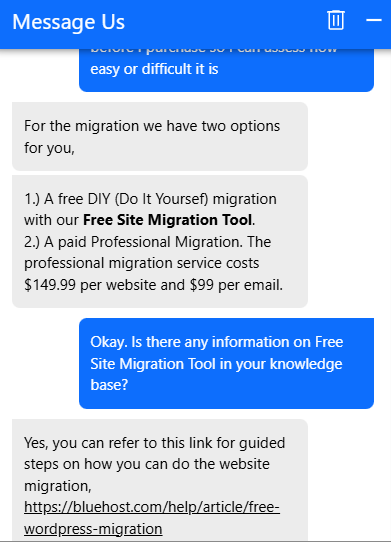
The answers were direct, the resources were useful, and the tone was friendly. Overall, the speed and clarity of Bluehost’s support impressed me.
Squarespace Customer Support
Squarespace’s process was more drawn out. From my dashboard, I clicked Help and launched the live chat option. A bot assistant greeted me first, asking for my email, name, website, and a description of the problem.
After filling all of that out, I was finally asked if I wanted to start a live chat with an agent. I clicked yes, and another window popped up with the message:
Waiting for an agent… This may take a few minutes. Send an email instead or Cancel Chat.

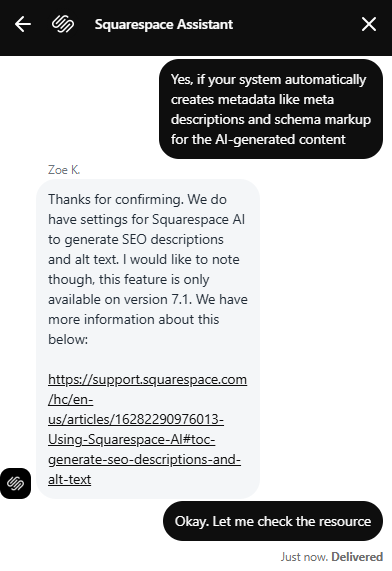
I decided to wait. It ended up taking nearly 40 minutes before a human agent (Zoe K.) joined. She greeted me warmly and reviewed my question, which was about Squarespace’s AI features and whether they could generate SEO metadata like meta descriptions and schema markup.
Zoe confirmed that Squarespace AI can generate SEO descriptions and alt text, but only on version 7.1. She also sent me a link to the official documentation. Once connected, her answers were clear, polite, and helpful, but the long wait time left me frustrated.
Squarespace also lacks phone support, which can be a dealbreaker if you prefer to talk to someone directly. Their 24/7 support is limited to email, which isn’t always fast if you’re in the middle of a critical site issue.
3. Hosting Features Comparison
Bluehost packs in more hosting features for flexibility.
Bluehost Features
When I tried Bluehost, I was surprised by how much it offers for the price. I could host a few sites under one account, and the NVMe storage made everything load super fast.
The free migration tool worked great. I moved a small WordPress site without any trouble. The weekly backups were reassuring, and having a staging site made it easy to test layout changes.
The control panel was simple to use, and their custom dashboard made things even easier for beginners. I also liked the free CDN, which really helped speed things up for visitors from different countries.
Squarespace Features
Squarespace feels very different because everything is bundled together. I didn’t have to think about hosting, backups, or SSL. They were just there. The drag-and-drop builder is polished and intuitive, and the templates look professional right out of the box.
It’s a real time-saver if you want a site live quickly. The built-in marketing tools, analytics, and e-commerce options are strong, though I found the email setup limited since you have to pay extra for Google Workspace.
The biggest downside is that you can’t move around server settings or use advanced features like staging or SSH, so you’re trading control for simplicity.
4. Website Performance Comparison: Speed and Reliability
Bluehost is faster and more reliable.
Website performance matters because every second counts. A slow site doesn’t just frustrate your visitors, but also affects SEO rankings and conversion rates.
To see how well each provider really performs, I ran a GTmetrix test on two real websites: one hosted on Bluehost and another hosted on Squarespace.
By doing this, I could measure real-world speed metrics like page load time, Largest Contentful Paint (LCP), and Time to First Byte (TTFB). These numbers tell me not just how fast a site loads, but how smooth and responsive the browsing experience feels for visitors.
Bluehost Performance Results
When I tested Bluehost, the site loaded in under 1 second, which is phenomenal by any standard. The speed visualisation showed content appearing almost instantly, with no noticeable layout shifts.
With a TTFB of 138ms and an LCP under 600ms, Bluehost clearly sits in the top tier for performance. In practice, that means visitors see your site right away, and Google loves that when it comes to Core Web Vitals.

Squarespace Performance Results
Squarespace held up pretty well, but it was definitely slower. My site took around 6 seconds to fully load, compared to under 1 second on Bluehost.
Its TTFB was actually a bit better at 117ms, but the real slowdown came from loading images and scripts. The LCP hit 1.2s, and the onload reached 1.4s.
Those numbers aren’t bad, but next to Bluehost, it just felt a bit sluggish.

What These Results Mean
From these tests, it’s pretty clear that Bluehost gives a faster, smoother experience overall. Pages load almost instantly, and the setup is well-optimised right from the start. Squarespace still performs well, but its heavier site builder slows things down a bit. If you care about SEO, keeping visitors around, and boosting conversions, Bluehost definitely has the advantage.
5. Ease of Use Comparison: Which Platform Is Easier to Use?
Squarespace wins on ease of use with its streamlined builder.
When I compare ease of use, I want to experience the actual journey that a new user would take. That meant going all the way from signing up for an account, logging into the dashboards, creating a website, and looking at how backups and server management are handled.
Here’s exactly how I tested both providers.
Registration and Creating a New Account
To see how easy it is to sign up, I started with Bluehost.
Bluehost
From their homepage, I hovered over the “Hosting” menu and clicked “Web Hosting.”

Right away, I saw a few shared hosting plans and went with the Business plan. It hit the sweet spot for price, storage, and features. Plus, it was marked as “recommended,” so that helped seal the deal.
Once I clicked “Choose plan,” on the next page, Bluehost asked me to either create a new domain (which comes free for the first year) or use one I already owned.

I liked having that flexibility since I sometimes test hosting with a temporary domain and other times connect one I already own.
This time, I grabbed a free domain, typed in the name, and Bluehost instantly confirmed it was available. There was also a “Choose domain later” option, which is handy if you’re still deciding.
After that, I landed straight to the cart, where the total came to $251.64 instead of $503.64, thanks to the discount for picking a 3-year plan.

Below this, Bluehost listed a few optional add-ons that I could include:
- Professional Email Trial (1 month free, then $2.99/mo): An upsell for branded email hosting
- Yoast SEO Premium ($2.99/mo): Helps with search engine optimisation and adding meta descriptions
- eCommerce Essentials ($6.99/mo, billed annually): Bundled plugins and tools for memberships, subscriptions, and monetisation
- Premium SSL ($3.33/mo, billed annually): A higher-tier SSL certificate with warranty and added trust signals

Each had an “Add” button, but I didn’t want to include any of them. I simply left them unchecked.
What I did pay attention to was the data centre selection. By default, Bluehost had assigned me Mumbai, but I wanted my test site to load faster for U.S.-based visitors, so I switched the location to Arizona, USA.
At the bottom of the cart, I could clearly see the summary.
I liked that they showed the discount upfront, along with the 30-day money-back guarantee. Once I was satisfied, I clicked “Continue to Checkout.”
On the checkout page, Bluehost asked me to fill in my contact information:
There was also a checkbox asking if I wanted to receive promotional emails from Bluehost, which I left unchecked.

Next, I had to create my account password. This is the same password that would be used to log into my Bluehost dashboard later. I confirmed it once more to avoid typos.
When it comes to billing information, I could choose either a credit card or PayPal. I selected my payment method, confirmed my billing address, and moved on.
The order summary appeared again on the right-hand side, reminding me of the domain, plan, and final cost. There was also a promo code field, but I didn’t have one.
Finally, I noticed a reminder that all plans renew automatically unless you cancel, which you can do anytime via your account or by contacting support. I appreciated that they made this clear before I submitted payment.
From start to finish, I found the Bluehost signup process to be clear, straightforward, and free of surprises.
Once I double-checked all details, I clicked “Submit Payment.”
Within moments, my payment was processed, and I received a confirmation email with login details. My Bluehost account was live, and I was ready to move on to setting up my website.
Squarespace
Next, I moved on to Squarespace. Right away, I noticed the difference. Instead of asking me to pick a hosting plan, their homepage put a big “Get Started” button front and centre.

I clicked it, and the onboarding wizard kicked in. The first screen asked me, “What’s your site about?” with categories like Photography, Consulting, Education, and Services.
I selected one that matched my test project and clicked Next.

The next screen was about website goals. There was a long checklist with things like “Sell products,” “Build a community,” “Offer appointments,” “Publish a blog,” and more.
It felt slightly overwhelming because of the number of choices, but I understood why. It helps Squarespace tailor the site to my needs. I checked a few relevant goals and clicked Finish.

Then I had to create my account. I could either sign up with an email or use Google. To save time, I chose Google.
Once connected, Squarespace asked me to enter a Site Title (which I could change later) and then select a Brand Personality.
The choices included Professional, Playful, Bold, and Quirky. I went with Professional because I wanted something simple and clean.
After that, Squarespace immediately generated a starter site for me, complete with a homepage, about page, and services section.
This was the key difference from Bluehost because by the time I finished registration, I already had a working website preview. I didn’t have to install anything.
This first step really showed the difference between the two platforms. Bluehost felt like buying hosting space, then getting ready to build. Squarespace felt like creating a website right away.
User Interface: Client Area & Dashboard
After signing up, I logged into Bluehost first. The client area looked modern and clean, with a sidebar on the left showing Home, My Sites, Domains, Email & Office, Marketplace, Marketing Tools, and an Advanced tab.

In the middle, I saw shortcuts like “Log into WordPress”, “Write your first blog post”, and “Customise your design.” This was helpful because it gave me a clear path forward instead of dumping me into an empty dashboard.
The “My Sites” section listed the test site I created, and with one click, I could jump into WordPress. I also noticed a tips & tricks panel on the right side with how-to articles and guides.
This would be useful for someone new to WordPress. At the bottom, there was a floating chat icon, so support was always one click away.
Next, I opened the Squarespace dashboard. It looked very different: sleek, minimalist, and heavily focused on website and business features.
The left-hand sidebar had options like Website, Pages, Marketing, Analytics, Selling, Scheduling, and Finance. Instead of server or hosting settings, the whole dashboard revolved around managing a website and online business.

For example, under “Selling,” I could add products, manage orders, or set up invoices. Under “Analytics,” I saw options for traffic reports and sales performance.
It was refreshing not to see any technical hosting terms. Squarespace stripped all that away and only showed business-related features.
I realised here that Bluehost’s dashboard is designed around hosting and WordPress, while Squarespace’s dashboard is designed around running your website and business. Both were easy to navigate, but in very different ways.
Creating a New Website
I wanted to know how quickly I could actually get a website live.
Bluehost
Because Bluehost is a hosting provider (not a site builder like Squarespace), you have to install a CMS such as WordPress before you can start designing. I wanted to see how smooth that process would feel for a beginner.
From the dashboard, I clicked on “Websites” in the sidebar and then chose “Add Site.”

Bluehost immediately offered me the option to Install WordPress or Import an Existing Site. I went with the first one, typed in my site name, and connected it to the free domain I had just registered.
The system confirmed the setup, and within a minute, the installation process started.

Here’s where Bluehost adds a little polish: they use an AI Site Creator to make the WordPress experience less intimidating.

Right after the installation, the AI asked me a simple but clever question:
Was I a beginner, intermediate, or advanced WordPress user?
I selected beginner, just to see how user-friendly the setup would be. Based on that choice, it recommended layouts that were simpler and more guided.
Then, I saw a collection of ready-made layouts (clean templates for blogs, business sites, and online stores).
Each layout had a Preview button so I could test the look and feel before committing. I clicked through several until I found one that fit my project, then hit Publish.

Within a few minutes, Bluehost had spun up a fully functional WordPress site on my domain. From there, I could log directly into the WordPress admin dashboard with a single click.
That opened the door to customising everything: installing themes, adding plugins, editing pages, and creating posts.
I noticed that while this process wasn’t as instant as Squarespace (where you land inside a pre-built website editor right away), it was still straightforward.
Bluehost guided me step by step, and the AI setup removed a lot of guesswork. It took maybe five minutes from start to finish, and I had a live site on the web.
So, in short: with Bluehost, you trade a little extra setup time for the flexibility of full WordPress control. For me, it felt easy enough to handle, and the AI assistance definitely made it less intimidating than a raw WordPress instal
<… truncated …>

